


Volume Booster - Sound Booster
4.828.64K Reviews
App Specs
- Version
- 2.9.2.60
- Updated On
- License
- Free
- Downloads
- 50,000,000+
- Developer
- 360 Tool
- Categories
- Music & Audio
- Platform
- Android, iOS
Screenshots
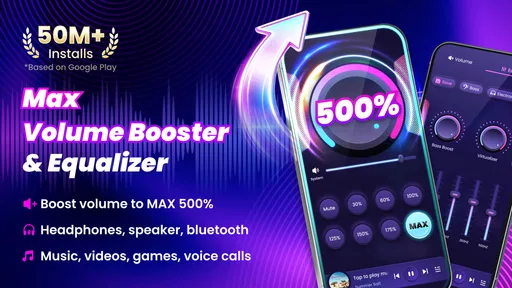
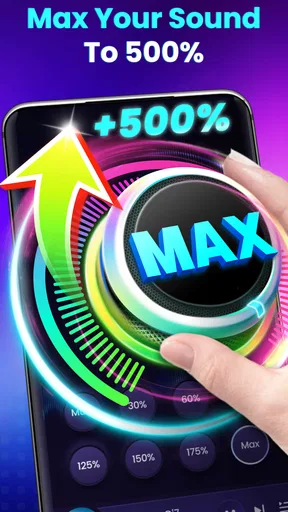
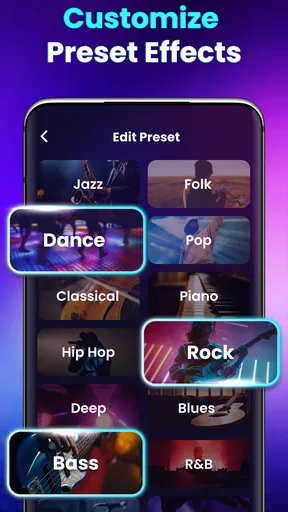
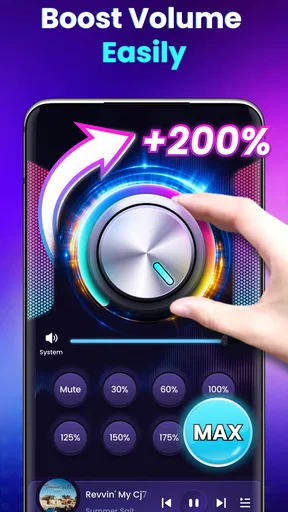

 Analysis by AppCompare
I often reach for a volume booster when a podcast or music seems too quiet in a busy place. Volume Booster - Sound Booster is aimed at that simple problem: raising the perceived output from a phone’s speaker or connected headphones. I’d think of it as a quick adjustment tool, not a replacement for better audio equipment or a fix for every source that sounds low.
What the free option means
The app is free to install, so you can try it without paying upfront. It also offers in-app purchases, priced from $2.99 to $11.99 per item. That tells me paid options are available, but I wouldn’t assume a purchase is necessary to test whether the basic idea suits your listening habits. I’d start with the free access and decide based on what you actually use, rather than paying before you know whether your phone and headphones respond well.
There’s a useful distinction between free access and paid value here. The app’s central purpose is easy to understand, but the price range alone doesn’t tell me what each purchase includes or whether it would be worthwhile for a particular listener. If you’re considering spending, check the in-app purchase details on your device and compare them with how often you need extra volume. For occasional listening, free access may be enough; frequent use is a better reason to weigh a paid option.
Where a volume boost helps—and where it doesn’t
In practical terms, a booster can be handy when a recording is quiet, your phone speaker is struggling to carry speech across a room, or ordinary listening levels feel insufficient. I’d try a modest adjustment first, then listen to the same passage again. That makes it easier to tell whether the sound is genuinely more usable or simply louder. A boost can’t restore detail that was never present in a recording, and it won’t make a small phone speaker behave like a dedicated speaker.
For example, imagine making breakfast while a spoken-word program plays from your phone on the counter. If kitchen noise masks the speaker, a small increase may help you follow the conversation without stopping what you’re doing. But if the source audio itself is muffled, or the phone is placed behind objects, turning it up may only make the muffling more obvious. Moving the device into the open or choosing headphones could be the better first step.
That’s the trade-off I’d keep in mind: more output can help with audibility, but it isn’t the same as better sound. At high levels, some combinations of source, phone, and headphones may become harsh or distorted. I would raise volume gradually and back off as soon as voices or instruments lose their natural character. It’s also sensible to be cautious with headphones, since a level that feels comfortable at first can become tiring over a longer session.
How it fits beside the usual alternatives
Before installing a separate tool, I’d check the phone’s own volume controls and the audio app’s playback settings. Those are the simplest options and may be all that’s needed when a device or source has been set unusually low. If the problem follows one particular recording, trying a different version or source can be more effective than boosting every sound coming through the phone.
Worth Reading Before You Choose

Flipboard Shows What News Apps Must Do Beyond the Feed

Switching to Android Auto Means Rethinking Your Driving Routine

Google Calendar Makes a Crowded Week Easier to Manage

Ludo King Makes the Most of the Minutes Between Plans

Baby Panda World Brings Quick Play to Modern Phones, but Its Game Library Feels Busy

ESPN’s Live Game View Makes Following Close Games Easier
A dedicated speaker or better-fitting headphones are more suitable when the real issue is weak hardware, poor placement, or background noise. A booster is more convenient when you want to experiment with the phone you already have, without adding another device. It’s a narrow but understandable role: adjust output when normal controls don’t give you enough, while recognizing that amplification can’t fix every cause of quiet or unsatisfying audio.
I’d also test it with the kind of content I actually play. Speech, music, and video can react differently to an increase, so a setting that makes a podcast easier to hear may not suit a song with already prominent bass or sharp treble. Start with a familiar, well-recorded clip, make a small change, and compare. That quick check is more useful than judging the app from one unusually quiet track.
Getting Started with Volume Booster - Sound Booster
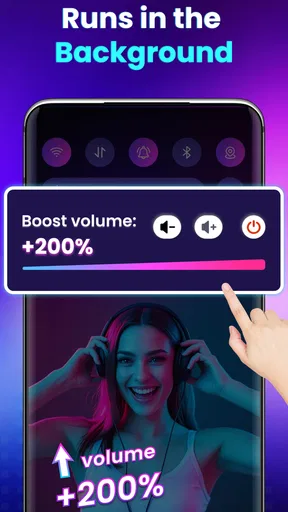
First things first, downloading Volume Booster - Sound Booster is a breeze. Available on both Android and iOS, it installs quickly without any hiccups. The interface? Super user-friendly! You don’t need a degree in tech wizardry to navigate it. Once you open the app, you're greeted with a simple slider that lets you adjust the volume to your heart's content. It's like having a remote control for your sound levels.
A Boost in Sound Quality
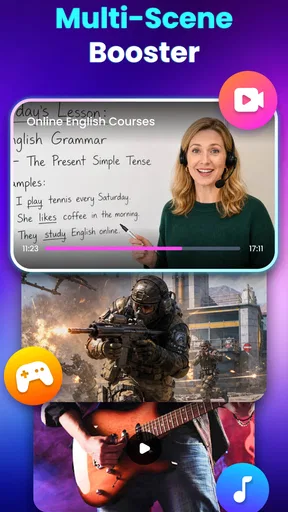
Now, onto the real deal. Does this app actually boost your volume? In one word: yes! I tested it with various headphones and speakers, and each time, the increase was noticeable. The app claims to enhance audio without distorting it, and I found that to be pretty accurate. Whether it was music, podcasts, or videos, everything sounded crisper and clearer.
But here's the kicker: it's not just about boosting the volume. The app also has an equalizer feature, which lets you tweak the bass, treble, and other sound settings. This is perfect for those moments when you're feeling a bit picky and want to customize your listening experience. It's like having a mini DJ booth in your pocket.
Compatibility and Performance
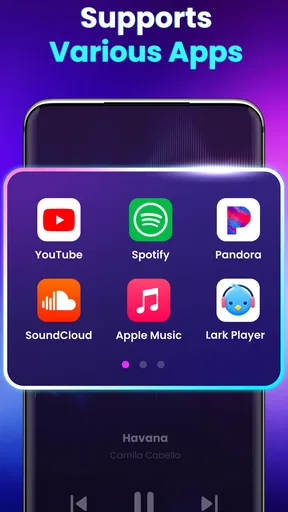
A major plus for me was the app’s compatibility. It works with pretty much any audio app on your phone, from Spotify to YouTube. No need to jump through hoops to get it working. I did notice, however, that the battery does take a slight hit when the app is running, especially if you're maxing out the volume. But hey, if you're looking for that immersive sound experience, it's a small price to pay.
Volume Booster - Sound Booster is a free Music & Audio app from 360 Tool. Its average rating is 4.7 from around 675,000 ratings, and it has over 50 million installs. It’s rated for Everyone, with version 2.7.1.56 listed and Android 6.0 as the minimum operating system. Those figures suggest it has reached a broad audience, though I’d still judge it by how it behaves on my own device and listening setup.
When I use a tool like this, I’d treat the slider and any sound adjustments as something to revisit rather than set once and forget. Different headphones can make the same change feel very different, and switching from private listening to a phone speaker may call for a lower setting. If you share a device with someone else, it’s worth checking the level before handing it over, especially if the last session involved headphones turned up for a noisy commute.
And speaking of small prices, let's talk bucks. The app is free to download, but there are some ads. They’re not too intrusive, but if you’d prefer an ad-free experience, there’s a premium version available. Personally, I found the free version to be quite sufficient, but the option is there if you want to go all out.
Who is likely to get the most from it?
I can see this being useful for someone who often listens to spoken audio from a phone speaker, regularly encounters quiet recordings, or wants a simple way to test whether a little extra output improves a familiar setup. It’s also approachable if you don’t want to spend time learning a complex audio editor. The appeal is that the task is immediate: open the app, adjust, and listen again.
I’d skip it if your main goal is richer sound, reliable noise isolation, or a dramatic upgrade to weak speakers. In those cases, improving the source, changing where the phone sits, or using more suitable audio hardware is likely to address the underlying issue better. I’d also be cautious if you need consistent volume for important listening; a booster is not a substitute for checking levels and content in the environment where you’ll use it.
One practical habit is to compare a quiet passage and a louder passage before settling on an adjustment. If the quiet part becomes audible but the loud part turns uncomfortable, the increase is too aggressive for that material. I’d lower it and consider whether the recording itself is uneven. This helps avoid chasing volume at the cost of comfort, and it gives a clearer sense of whether the app is solving the problem you installed it for.
Final Thoughts
All in all, Volume Booster - Sound Booster does exactly what it promises. It's a simple, effective app that enhances your audio experience without much fuss. Whether you're struggling to hear your tunes in a noisy environment or you just want to pump up the jams, this app has you covered.
If you’re on the lookout for a way to give your sound a little extra oomph, why not give it a shot? It’s like having a tiny concert hall in your pocket, ready to rock anytime, anywhere. Just remember to keep an eye on your battery and enjoy the ride!
My buy-or-skip verdict is straightforward: try the free version if you have a specific volume problem and are comfortable adjusting levels carefully. I wouldn’t pay simply because more volume sounds appealing; first see whether the free experience makes your usual listening clearer and more convenient. If it does, you can consider whether any paid option offers value for your own routine. If it doesn’t, a change of source, placement, or audio equipment is the more sensible next move.
Pros
- Boosts overall sound volume effectively.
- User-friendly interface for easy navigation.
- Compatible with most audio sources.
- No significant lag or delay in audio.
- Customizable sound settings available.
Cons
- May cause distortion at high volumes.
- Ads can be intrusive during use.
- Limited features in free version.
- May not support all device types.
- Potential drain on battery life.
FAQs for Volume Booster - Sound Booster
How does the Volume Booster - Sound Booster app work?
Volume Booster - Sound Booster enhances your device's audio output by increasing the volume beyond the standard limits set by your device's hardware. It uses advanced algorithms to amplify sound without significant loss in quality. However, users should be mindful of potential distortion at maximum levels and use it responsibly to avoid damaging speakers.
Is Volume Booster - Sound Booster safe for my device?
The app is designed to safely increase volume, but excessive use at high levels can potentially harm your device's speakers or headphones. It's recommended to use the app at moderate levels to avoid hardware damage. Always monitor your device’s performance and stop use if you notice any issues.
Does the app require special permissions?
Yes, Volume Booster - Sound Booster requires certain permissions to function correctly. It typically needs access to your device's audio settings, and in some cases, might request permission to run in the background. These permissions ensure the app can effectively boost your device's audio output.
Will using Volume Booster - Sound Booster affect battery life?
Using Volume Booster - Sound Booster may slightly impact battery life, as it runs audio processing tasks in the background. The extent of this impact depends on your device and usage patterns. To minimize battery drain, it's advisable to close the app when not in use and monitor your device’s battery consumption.
Is the app compatible with all audio formats and media players?
Volume Booster - Sound Booster supports a wide range of audio formats and is compatible with most media players. Whether you’re streaming music, watching videos, or playing games, the app can enhance audio output. However, for the best experience, ensure your media player is up-to-date and check the app’s compatibility with your specific device.


